How to connect a laptop or phone to a sound system
At almost every event, music or presentation audio plays from a laptop or a phone. It is also where things most often go wrong: hum, a weak signal, Bluetooth that drops out or a device that falls asleep in the middle of a speech. Here is how we make the connection reliable and what is worth testing before the event.
3.5 mm or USB
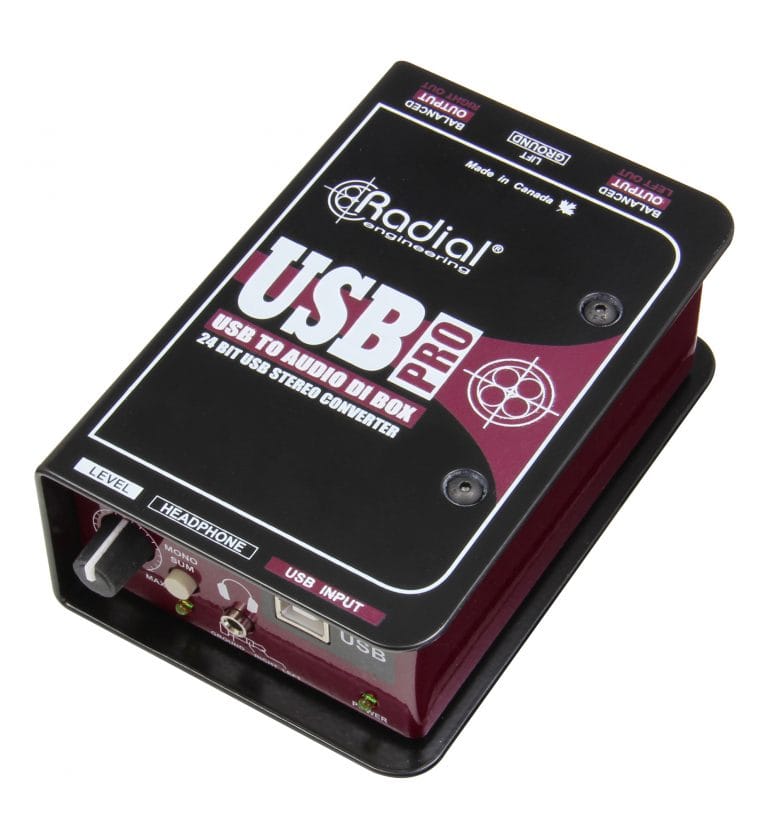
The two dependable routes are the headphone jack (3.5 mm) and USB. The headphone jack is simple and works with any device that still has one, but the signal is weak and the cable picks up interference. Over USB the audio leaves the computer digitally and is converted to sound only in the DI box near the mixer, so the quality of the laptop's headphone amplifier and its interference no longer matter.
Phones and newer laptops no longer have a 3.5 mm socket. Bring your maker's own adapter from USB-C or Lightning to 3.5 mm and try it at home, because not every cheap adapter passes audio.
For a presentation, also check that the audio leaves from the right device. When the laptop is connected to a projector over HDMI, the computer often routes sound to the projector instead of the USB DI box, and the first video plays silent. Pick the right output in the sound settings before the rehearsal.
Why you need a DI box
A DI box turns the laptop's weak unbalanced signal into a balanced XLR signal that can run to the mixer over a long cable without picking up hum and radio interference. It also galvanically separates the grounds of the laptop and the sound system, which is the most common cause of hum.
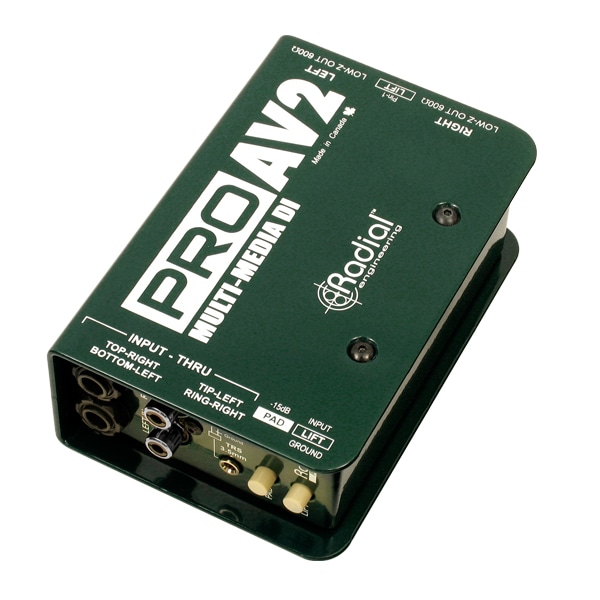
Our kits use three variants. The Radial USB-PRO connects to the laptop over USB and gives two XLR outputs; it is the standard in the presentation and conference kits. The Radial PROAV2 is a passive stereo DI box with 3.5 mm and RCA inputs that we use for music in the party and wedding kits. The Palmer PLI-04 is a similar passive stereo unit that goes in the conference kit for the backup laptop. The Palmer PLI 04 USB combines a USB input and a line isolator in one box.
Hum and how to get rid of it
A low drone from the speakers when the laptop charger is plugged in is a ground loop. First aid is a DI box with its ground lift switch engaged. Without a DI box, unplugging the laptop charger often helps, but then the battery has to last the whole event.
A higher hiss or whine that changes with screen brightness or mouse movement is the laptop's own interference in the headphone output. Only a USB connection cures that, because the laptop's analogue stage is then bypassed.
Bluetooth: background music only
Bluetooth is convenient but unreliable at an event. The link drops when the phone moves away, another guest can connect by accident, an incoming call interrupts the music, and the sound reaches the speakers with a small delay. For quiet background music at a reception it is fine; for the processional at a ceremony or a DJ set it is not.
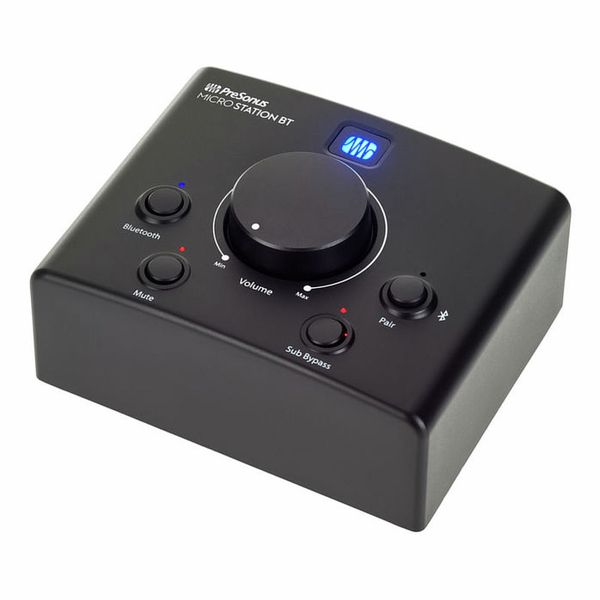
If Bluetooth really is the only option, use a receiver close to the device and cabled to the mixer, such as the MicroStation-BT, and put the phone in flight mode with Bluetooth on.
Levels: start at the device
Turn the laptop or phone volume all the way up and control loudness from the mixer. Done the other way round, device quiet and mixer at full, all the computer's noise comes along. Switch off system sounds, notifications and the screensaver, and disable sleep for as long as the cable is in.
In streaming apps, switch off volume normalisation and crossfade if you want tracks to start and stop exactly where you expect. Adverts in free tiers come out of the speakers exactly like the music.
Several people playing, and what if the device dies
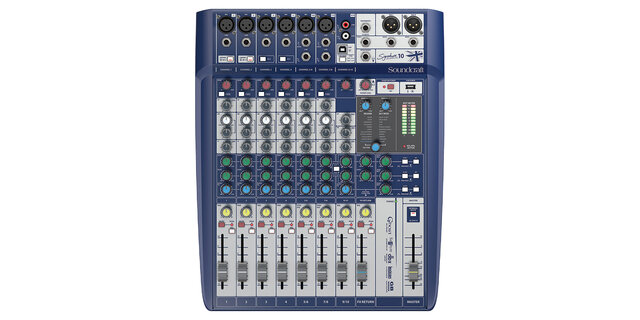
At weddings and birthdays several people often want to play their own tracks. Do not pass one device around; connect two instead. A stereo DI box such as the PROAV2 or PLI-04 has its own input on each channel, or use two stereo channels on the mixer. The next person plugs in and gets ready, and a mixer fader switches over without a gap.
A backup device is mandatory. A second phone with the same playlist, downloaded rather than streamed, and a full battery. Bring the charger and a spare adapter too.