Hybrid events and livestreams: getting the room's sound into the stream
A hybrid event has two audiences. People in the room hear the speakers and also whatever someone says without a microphone. People behind a screen hear only what the mixer sends to the stream. The most common mistakes come from planning the sound for the room only, so the stream gets a laptop microphone or just the mixer's main output as an afterthought. This guide covers how to get sound into the stream, how to bring remote speakers into the room's speakers without echo, and what to put in your sound equipment rental request when the event runs in the room and online at once. The wider organisation of a conference is in "Conference audio: a checklist for the organiser".
Rule one: online, only what reaches a mic is heard
In the room, a speaker can step away from the mic for a moment and the audience still hears them. Online, they vanish completely at that moment. The same happens with a question from the floor: the near rows hear it, the online audience does not. So a hybrid event needs a microphone for every voice the stream must carry, even when the room is small enough to manage without amplification.
Plan at least one wireless mic for audience questions and a person who takes it to the questioner. With lots of questions, two mics are quicker. On a panel, each participant needs their own mic. A lavalier or headset, such as the Shure MX153T/O-TQG, keeps the voice steady even when the speaker turns their head to the screen.
A separate mix for the stream
The room mix and the stream mix are not the same. In the room, speech mics cannot be so loud that they feed back, and the room's acoustics add to the sound. Online there is no room acoustics, and the sound must be even and clear so listeners do not keep adjusting their volume.
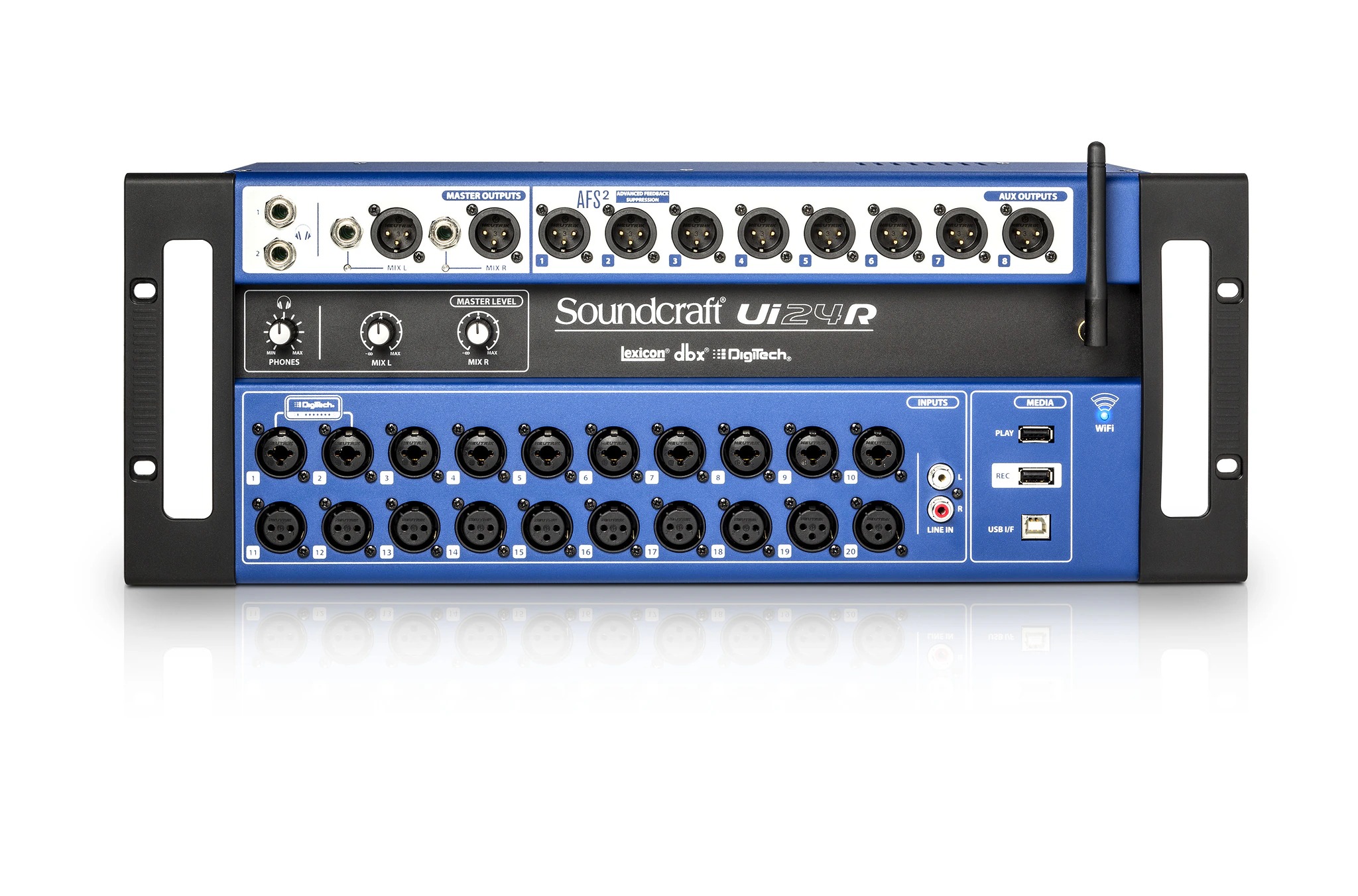
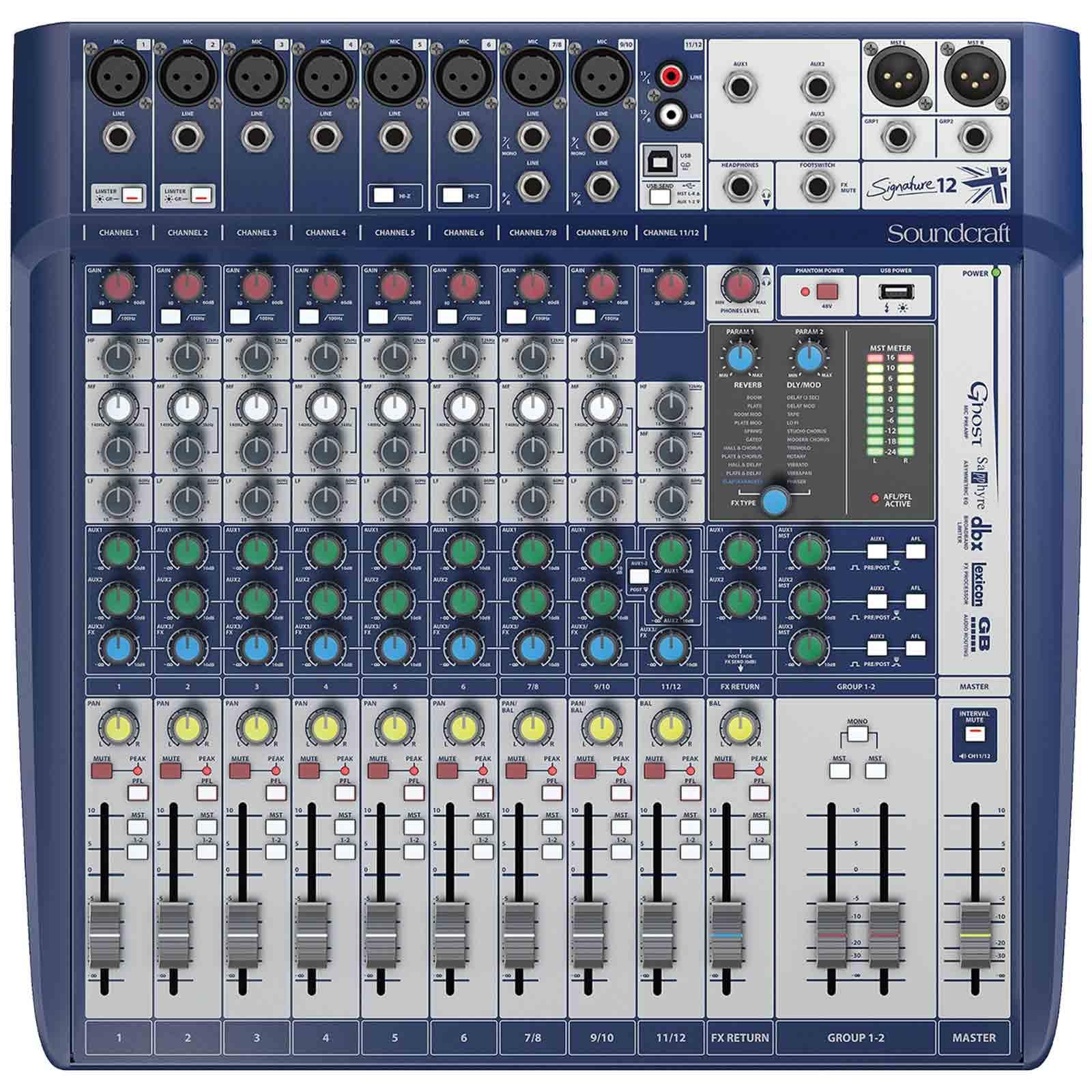
That is why the stream gets an aux output or a separate mix from the mixer, not the main output. On a digital mixer such as the Soundcraft Ui24R or Yamaha DM3, you can add a compressor to the stream mix so quiet and loud speakers sit at a similar level. If one technician runs both mixes, they monitor the stream on headphones and the room on the speakers.
- Room mix: speech mics, music, no echo from remote speakers.
- Stream mix: all mics, video audio, compressor, steady level.
- Remote speaker's return: everything except their own voice.
Getting audio from the mixer into the computer
The stream usually runs from a computer or a video switcher. Audio gets there over USB straight from the mixer or through an audio interface. The Soundcraft Signature 10 and Ui24R can send audio to a computer over USB. If the computer is far away or the video crew has its own gear, audio goes from a mixer output to their input over XLR.
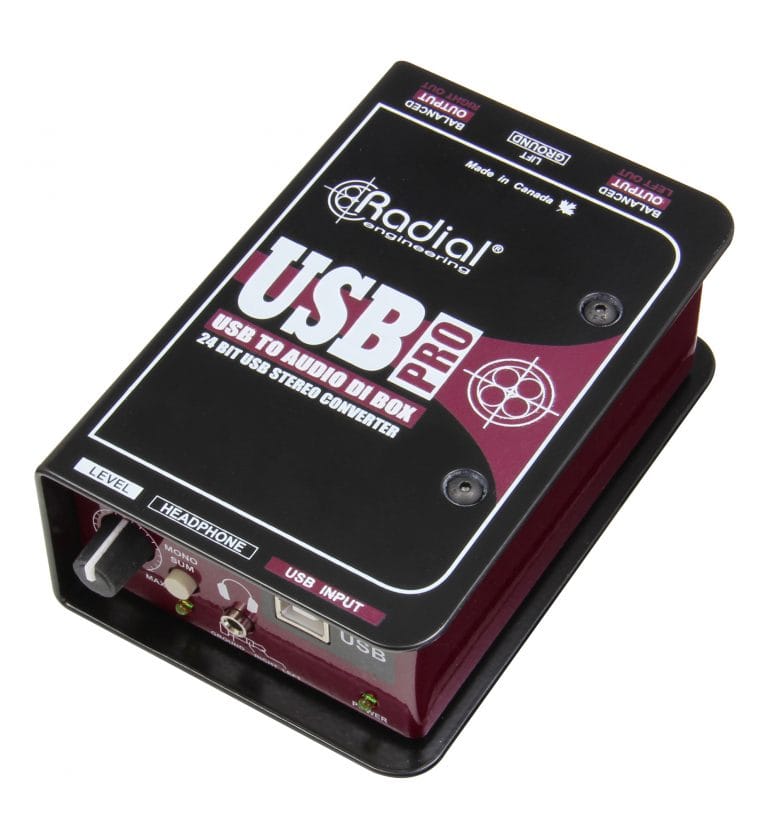
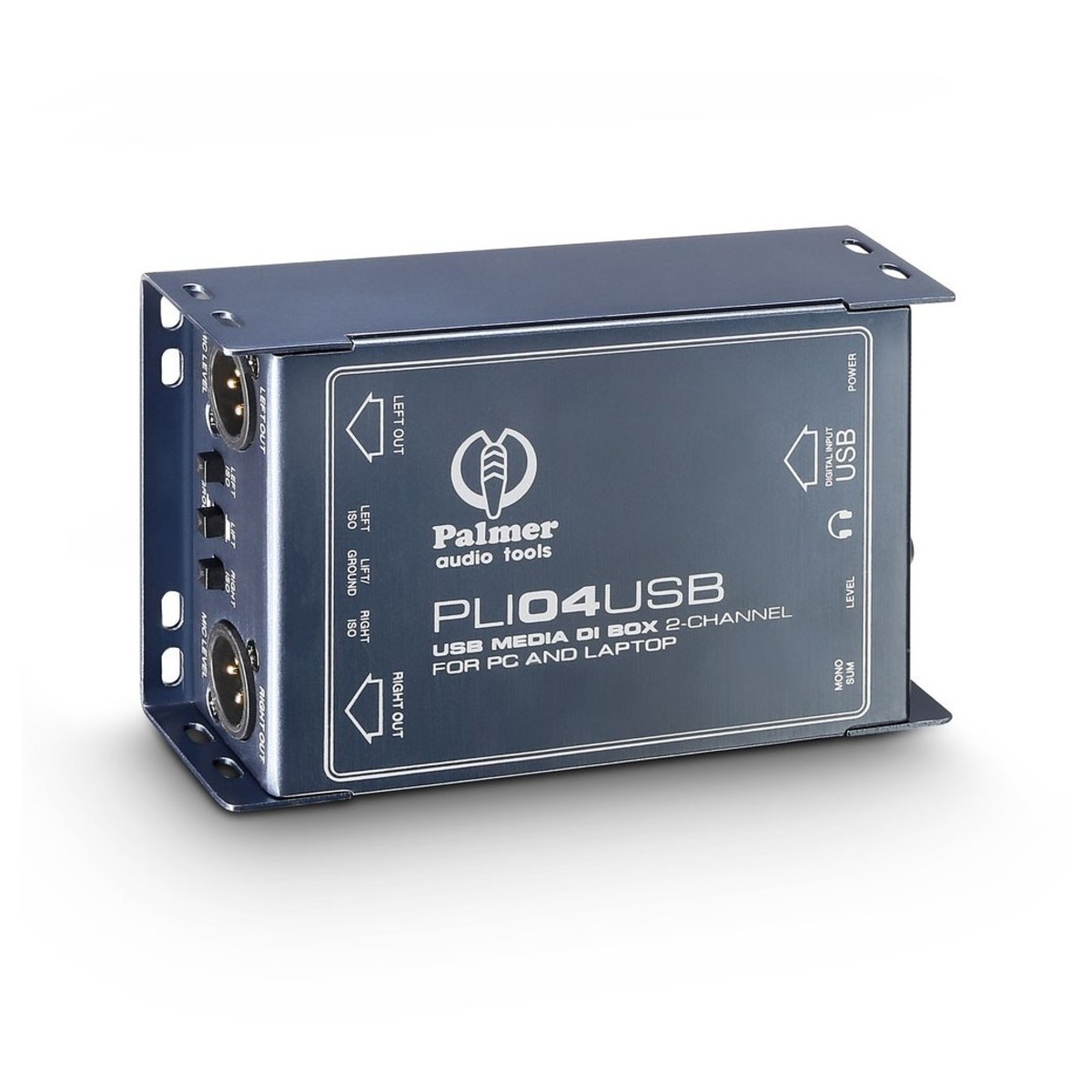
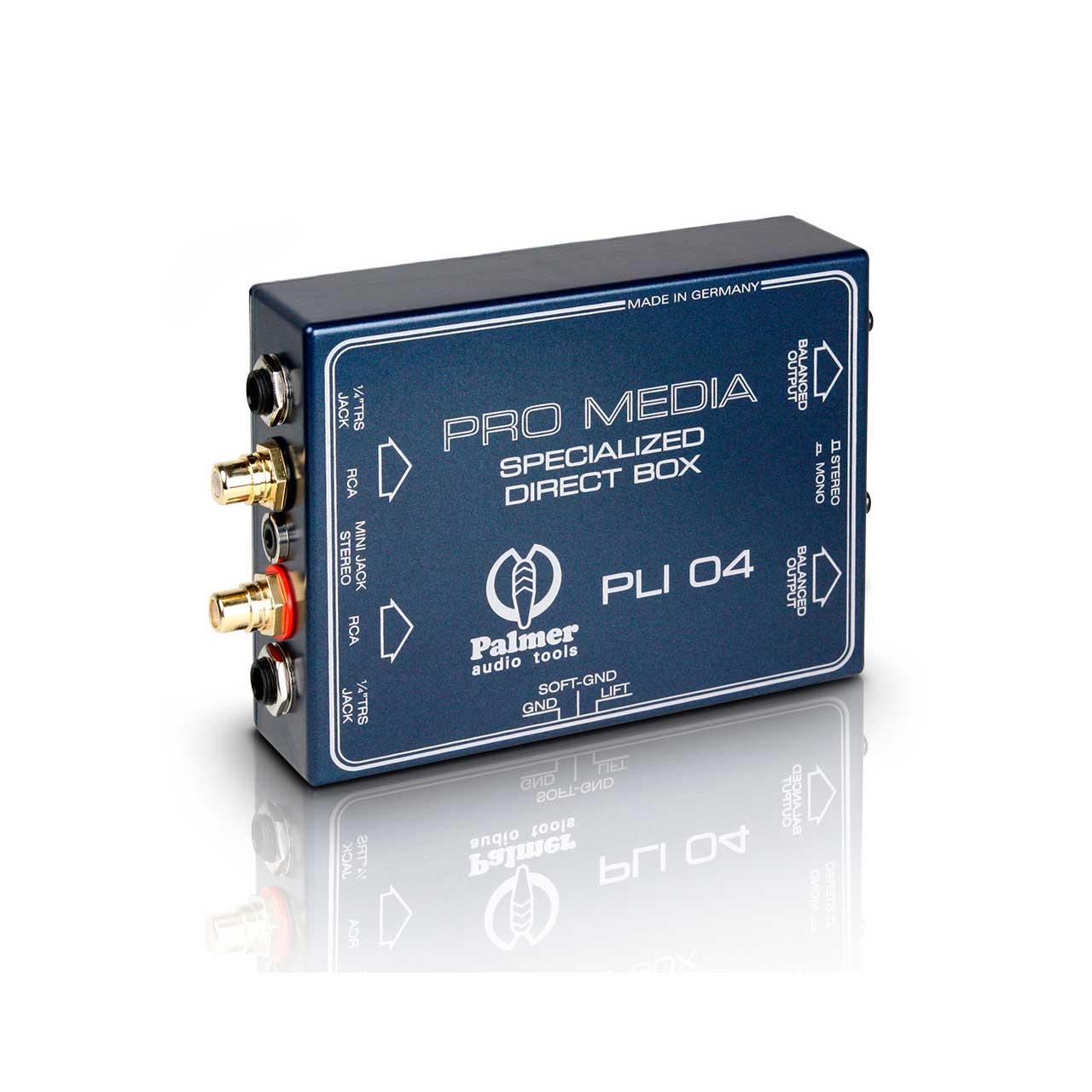
Hum is a common problem at hybrid events, because computer, projector, video switcher and audio mixer are powered from different places. An isolating DI box such as the Palmer PLI-04, or for USB the Radial USB-PRO or Palmer PLI 04 USB, breaks the ground loop. Agree with the video crew beforehand on what format and level they want.
Remote speakers in the room without echo
When someone presents over Zoom or Teams, their voice comes from the computer into the mixer and the room speakers. If the room mix goes back into the same call, the remote speaker hears themselves with a slight delay, which makes talking almost impossible. The fix is a mix with all the room mics but not the remote speaker's own voice. An aux output on the mixer does the job.
In the call software, use the mixer output as the computer's audio input, not the laptop mic, and switch the software's own noise suppression or echo cancellation off or low where possible, because they can make speech choppy. Do a test call with the remote speaker before the event, on the same computer and with the same settings.
Delay and lip sync
Streaming always adds delay. The online audience sees and hears everything a moment later, and that is normal. The problem is when sound and picture drift apart and the speaker's lips do not match the voice. The cause is usually that the camera and the audio take different routes.
Most streaming software and video switchers let you set an audio delay. Check sync in the rehearsal by having someone clap in front of the camera, and watch the stream on another device. Do it before the audience arrives, not during the first talk.
Listen to the stream, not just the room
Sitting in the room, you cannot tell how the stream sounds. Put someone with headphones on a separate device watching the stream as a real viewer. That shows the actual delay, reveals a mic that is too quiet, and catches it when audio drops entirely.
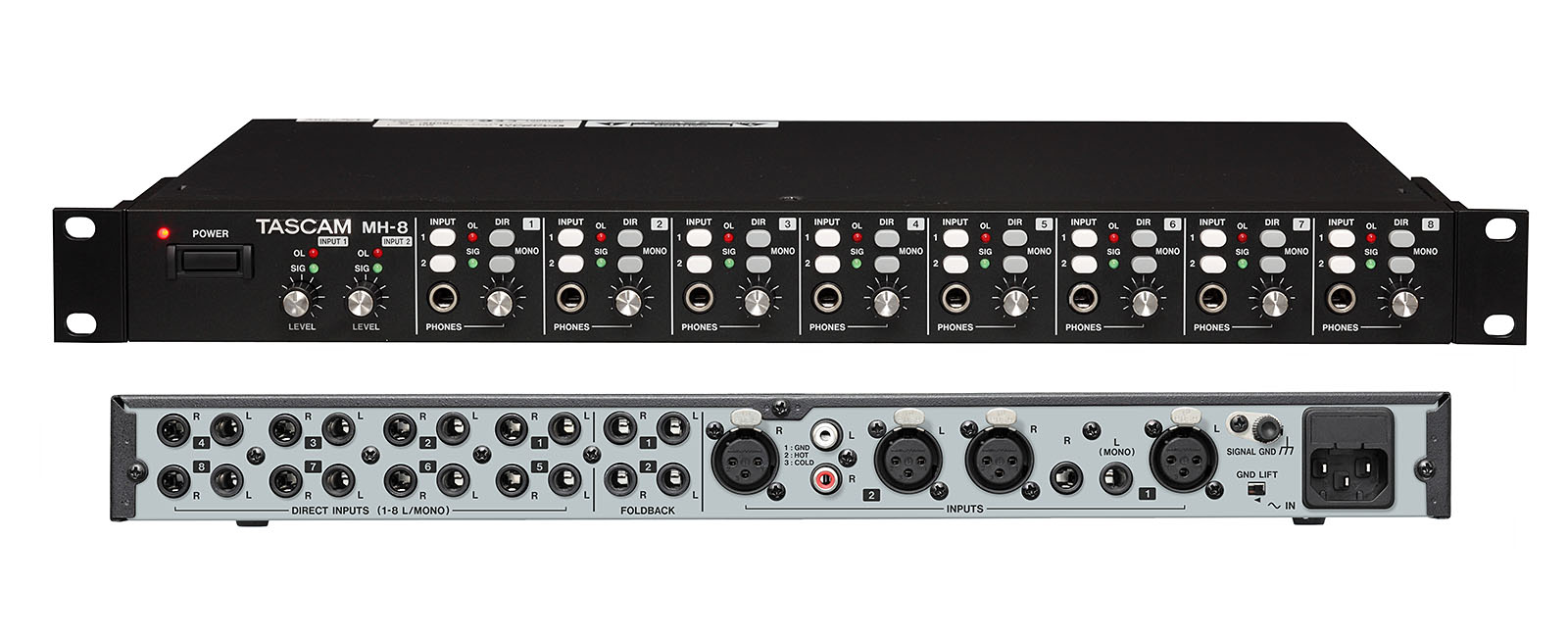
If several people need headphones, say the technician, the video crew and the moderator, the TASCAM MH-8 headphone amplifier splits one signal into eight outputs with separate volume. Agree how technical problems reported online reach the technician in the room, for example through a separate chat.
Backup recording
A stream can drop, or the platform's recording can fail. Record the stream mix separately as well. The TASCAM FR-AV2 is a two-channel 32-bit float recorder that you can plug into a mixer output and leave recording for the whole event. The Soundcraft Ui24R can also record multitrack to a USB drive itself.
If the event will be edited afterwards, a multitrack recording helps, because each mic's level can be fixed separately later. Recording options are covered in "Recording the sound of an event".